
This article describes how to create a quiz with start date, durations & max attempts
TABLE OF CONTENTS
General information
Quiz is a term for a simpler form of question testing. One can make quizzes to test students' knowledge through a slightly less formal process, than a real examination. You can either create a new quiz and collect questions from your question bank or you can create a quiz based on a completed examination.
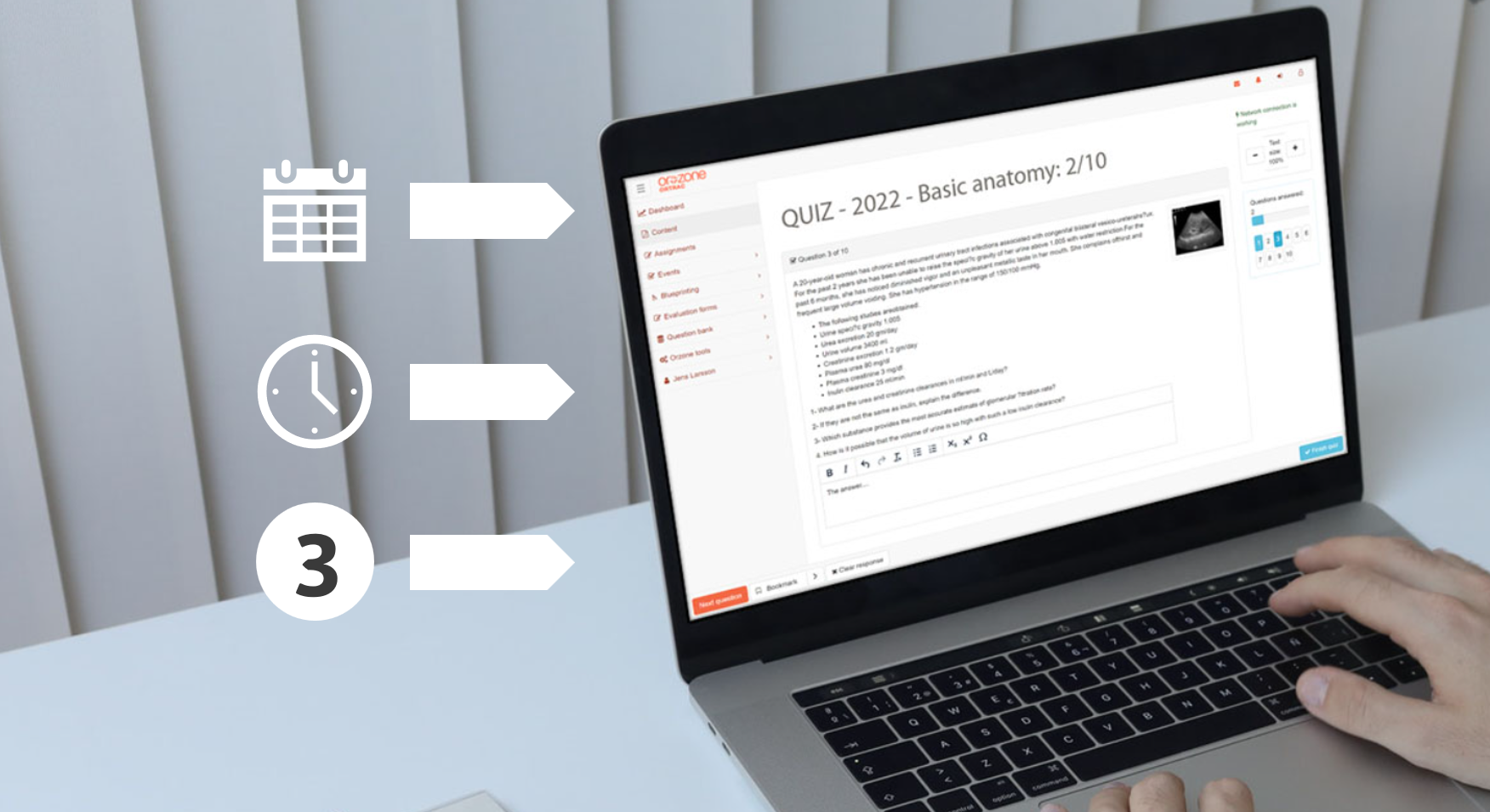
Control the usage of the quiz by adding scheduled starts, duration and maximal attempts.
Find menu
- Go to Courses/<select course>/<course occasion>, left menu
- Go to the menu Quizzes, in the course occasion
Create Quiz
For standard quiz setup: read more here
- Click the button Create new quiz
- Under the Info tab, do the following settings:
- Start time: select Scheduled start (add time & date for the quiz to be available for students)
- Duration: select Limited (add hours & minutes)
- Number of attempts: Limited (add number of attempts)
- Allow retry incorrect questions: (select yes, if the student should be able to try out the failed questions again)
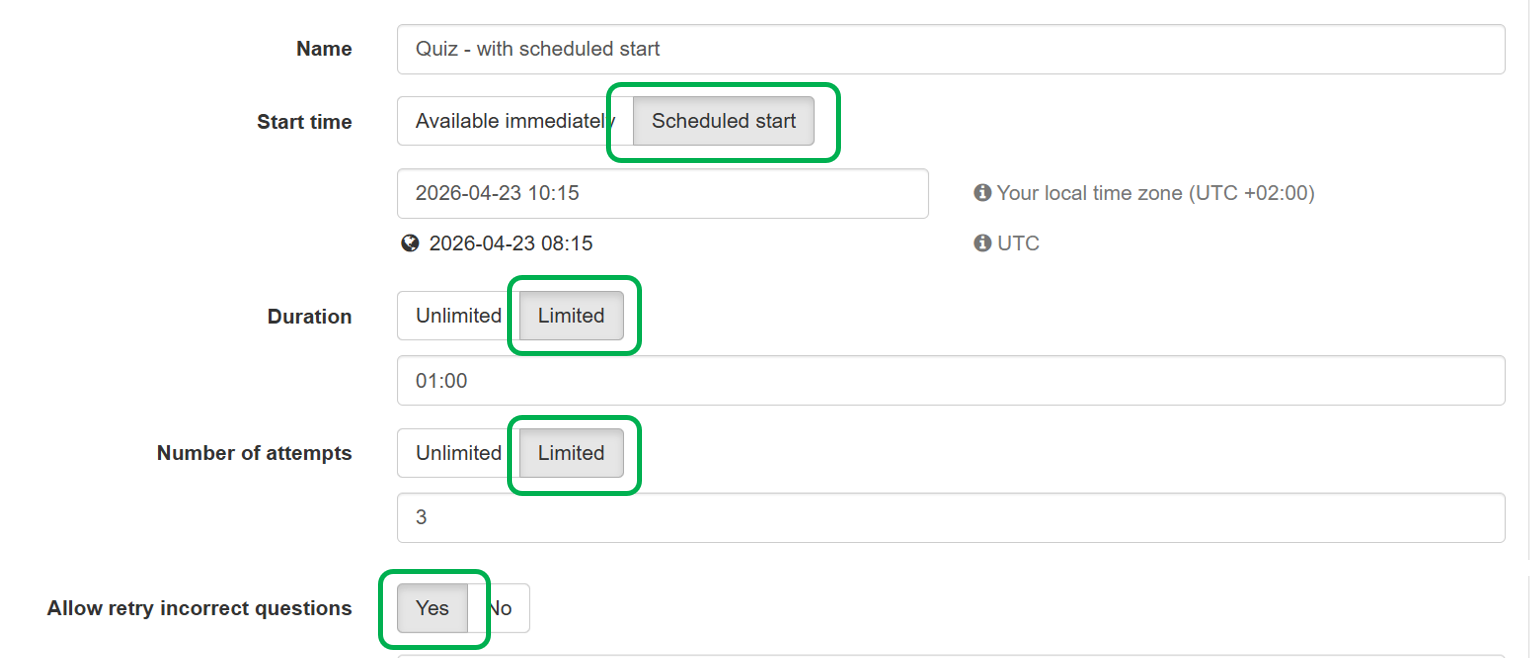
- When all the settings are made, click on the button Save
Select questions
For standard quiz setup: read more here
Submissions/quizzes taken
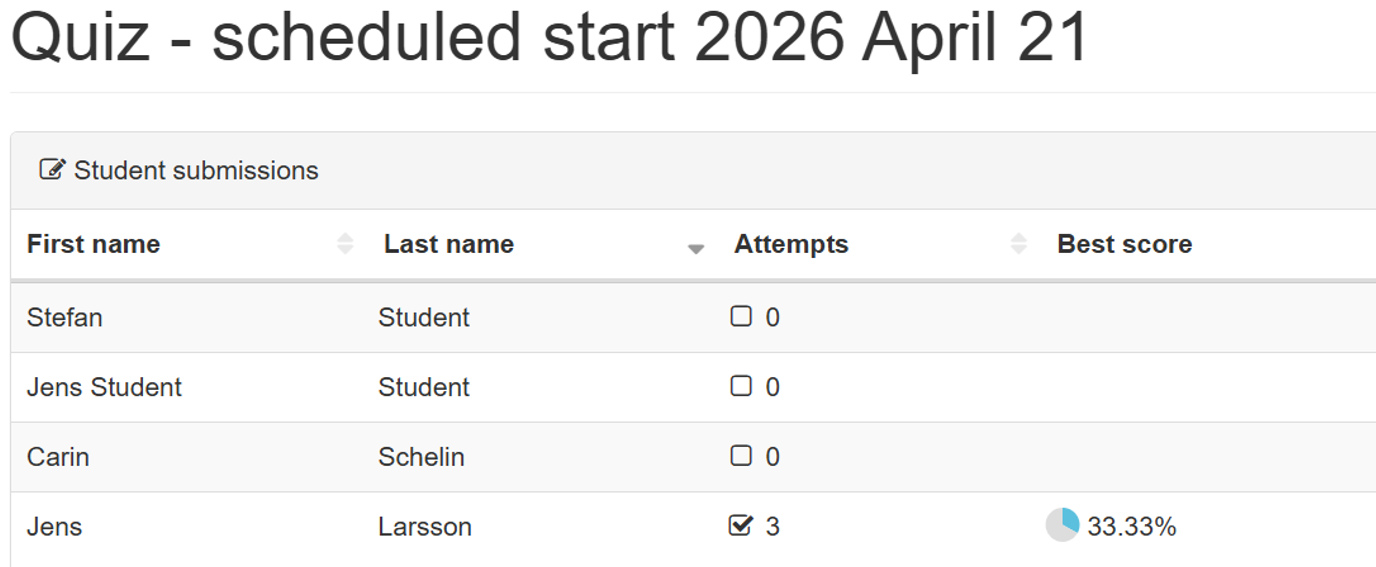
If you switch over to the Submissions tab, you will see how many times the students have taken the quiz, at the Event you have made quizzes available.
Quiz as a student
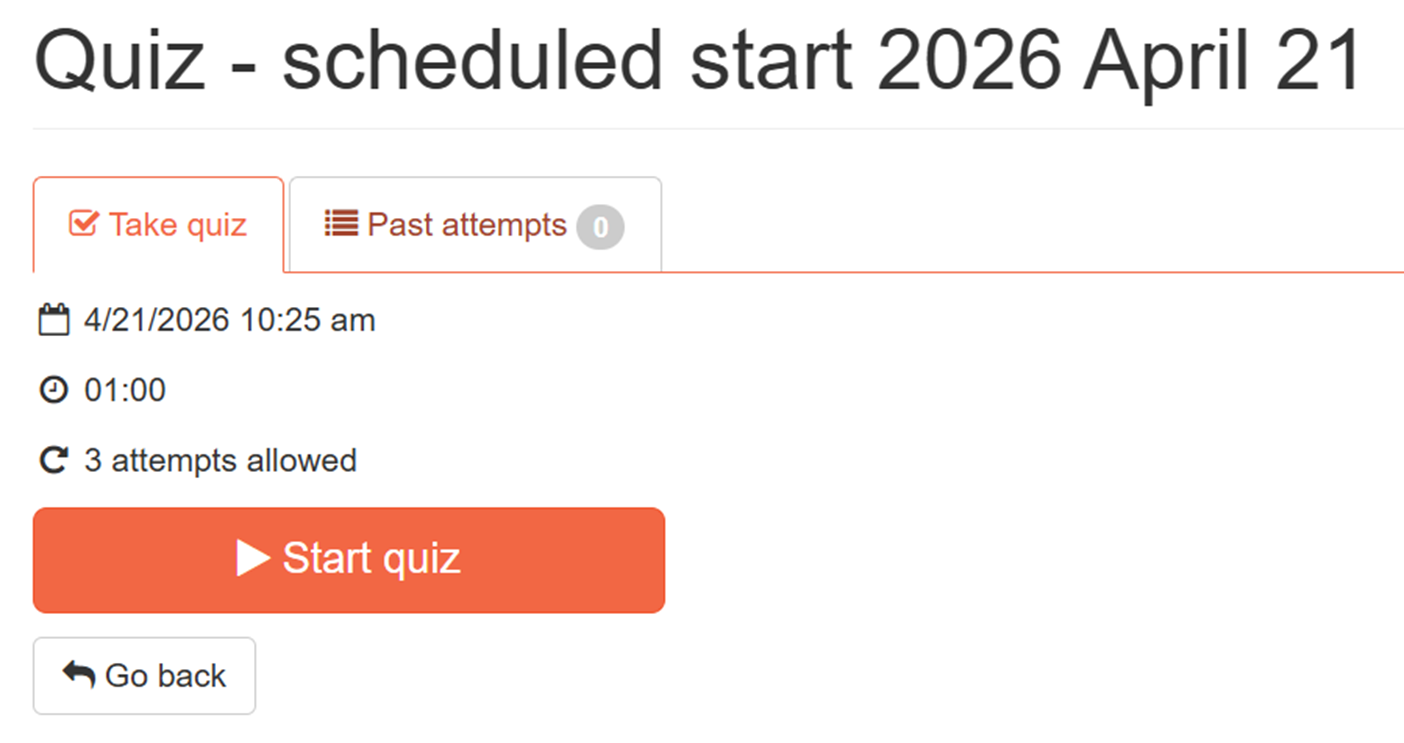
When you have published the quiz, the following things happen on the student's page. He logs in as usual in Ortrac and on the home page Dashboard / Portfolio you will find that in the Content section the number of quizzes has now increased.
- Click on the new quiz in the list (more info about the settings for the quiz are visible)
After a quiz and you have questions with wrong answers, a button appears under every question, and offer a possiblity to retry that question.