This article describes how a set up a program overview page that will precede students' default course-specific landing pages
TABLE OF CONTENTS
- General information
- Administrator - find the menu
- Administrator - Configure the page
- Administrator - Program announcements
- Administrator - Course announcements
- Student - use of overview page
- Students - comments on Program/Course announcements
- Orzone - properties
General information
A program overview page that will precede students' default course-specific landing pages. The page help the students, to reach information about the program, to navigate to their course occasions, find assignments and interact with different types of feedback.
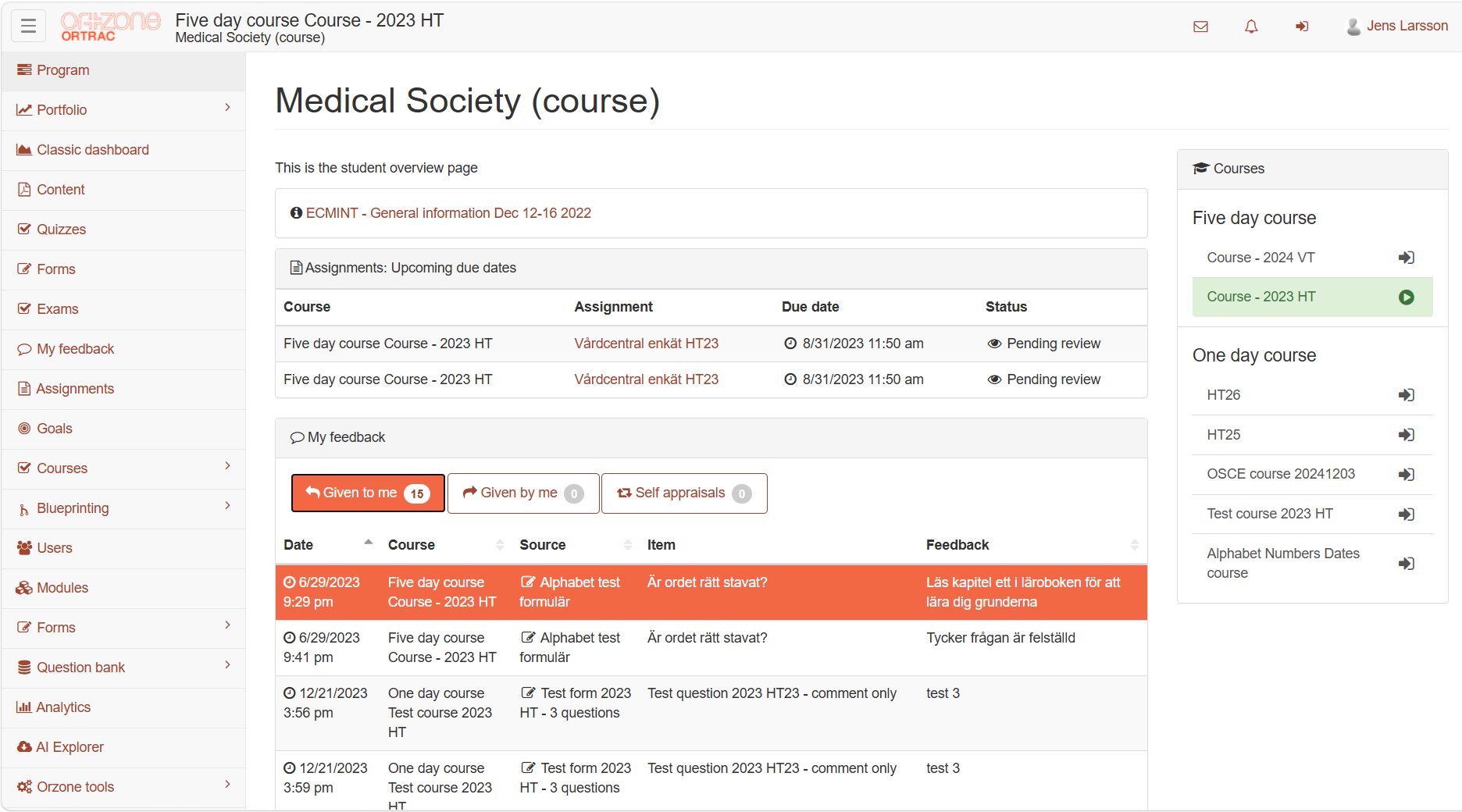
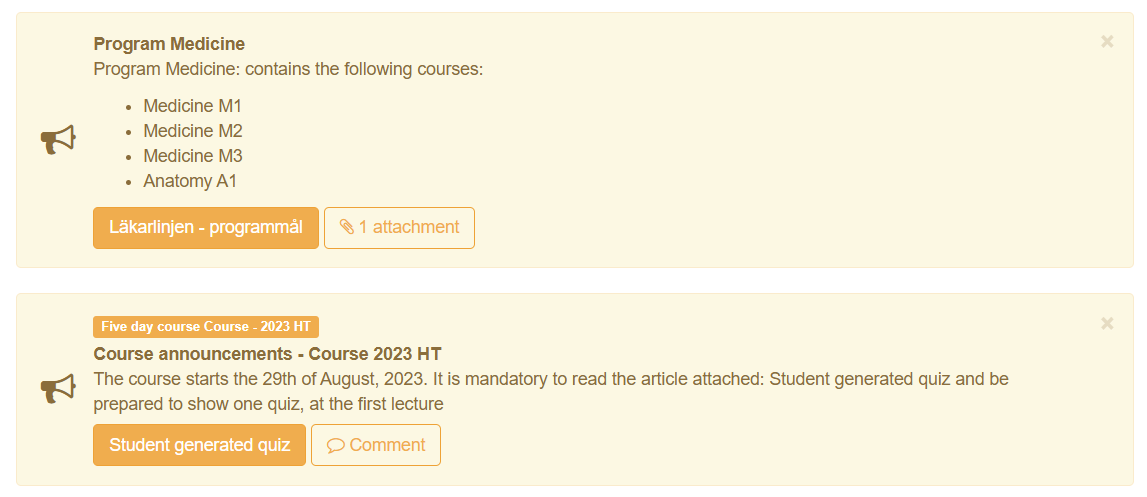
This page can also offer a possibility view and interact with program/course announcements.
Administrator - find the menu
- Go to Blueprinting/Program layout/<program>, left menu
- Settings is found under the section Students overview page
Administrator - Configure the page
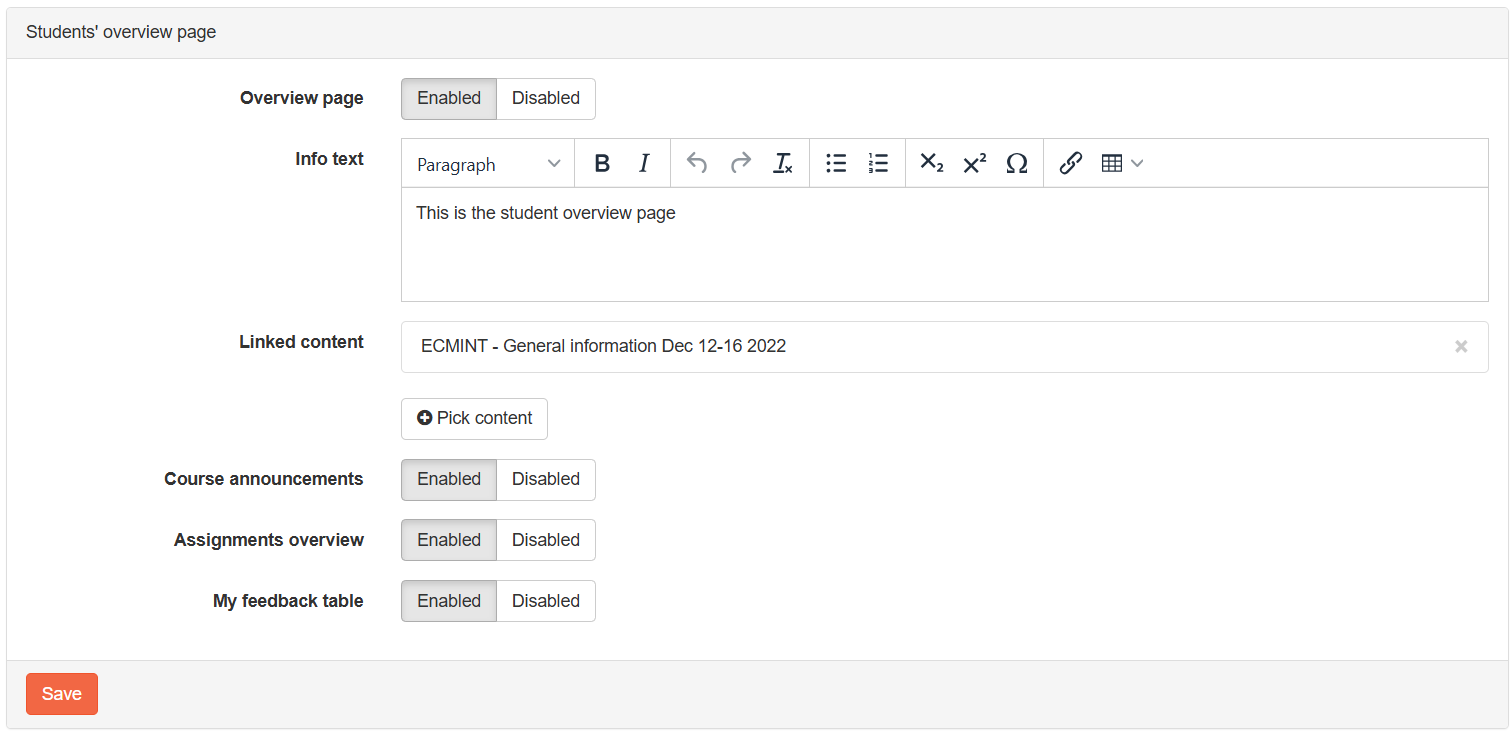
To setup this menu for the student, do the following:
- In the Info text section: enter information to students about the program
- Link <content pages> under the dropdown menu Linked content (it is possible to link one or several content pages)
- Course announcements toggle button, set to Enabled
- Assignments overview
- My feedback table
- When all the settings are made, click on the button Save
Administrator - Program announcements
To create a program announcement:
- Go to the Announcement menu
- Click the button Create new Announcement
- Give it a <name> in the Title field
- Write a <description> in the Body field
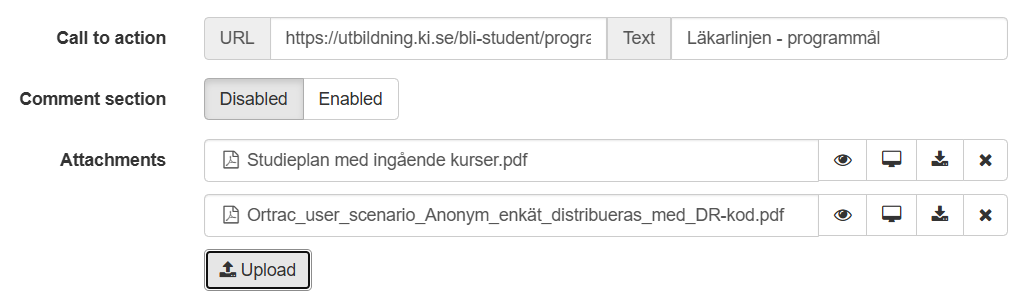
- Add a <link> in the Call o action in the URL section, and <name it> in the Text section
- Change state Disabled/Enabled under the Comment section, control comments from students
- Add <one or more files> under the Attachment section, by clicking the Upload button
- Change state for the announcement Draft/Active under the State section
- If you like to change the state to Active using <a date and time>, use the Publish date section
- Preview shows how the settings will appears for the students
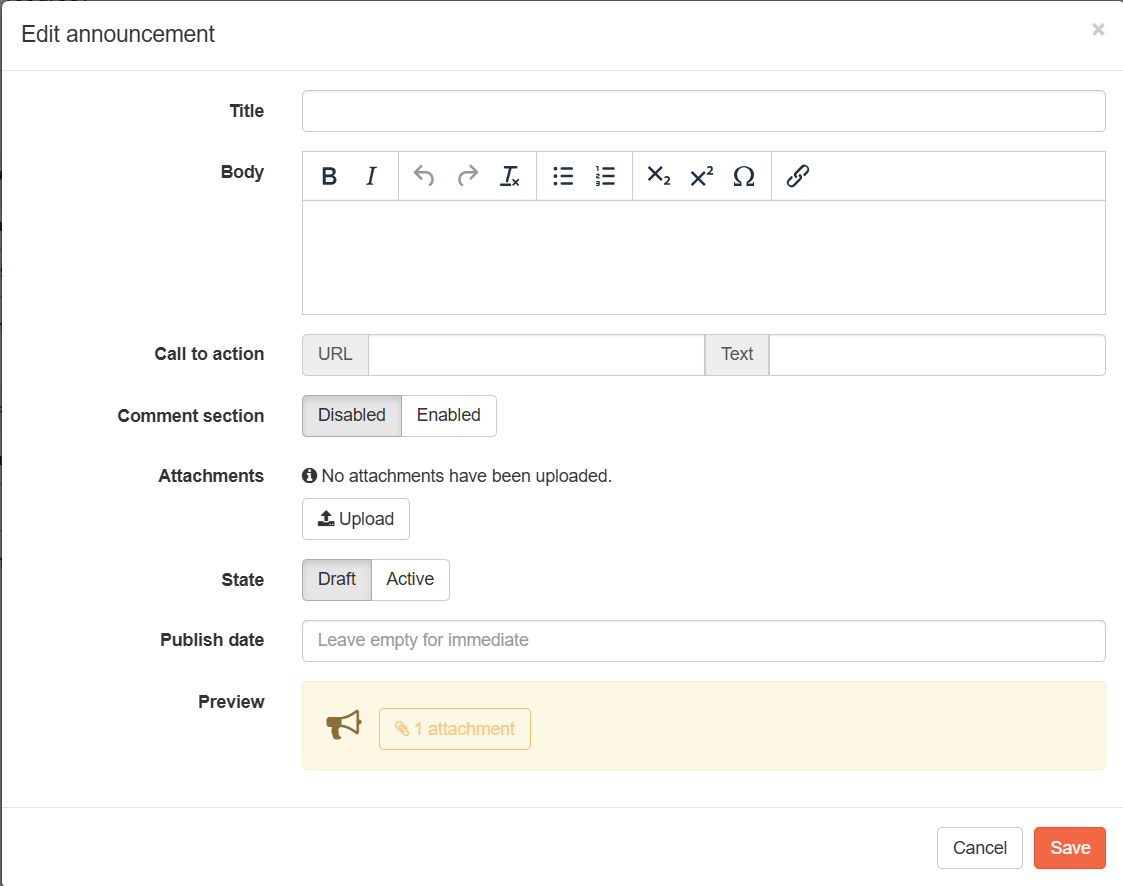
It is possible to add a link in an announcement and name it. It is also possible to attach, one or more files.

If you like to hide an existing announcement:
- Go to the Announcement menu
- Click the <announcement> you want to hide
- Change the State toggle button to Draft
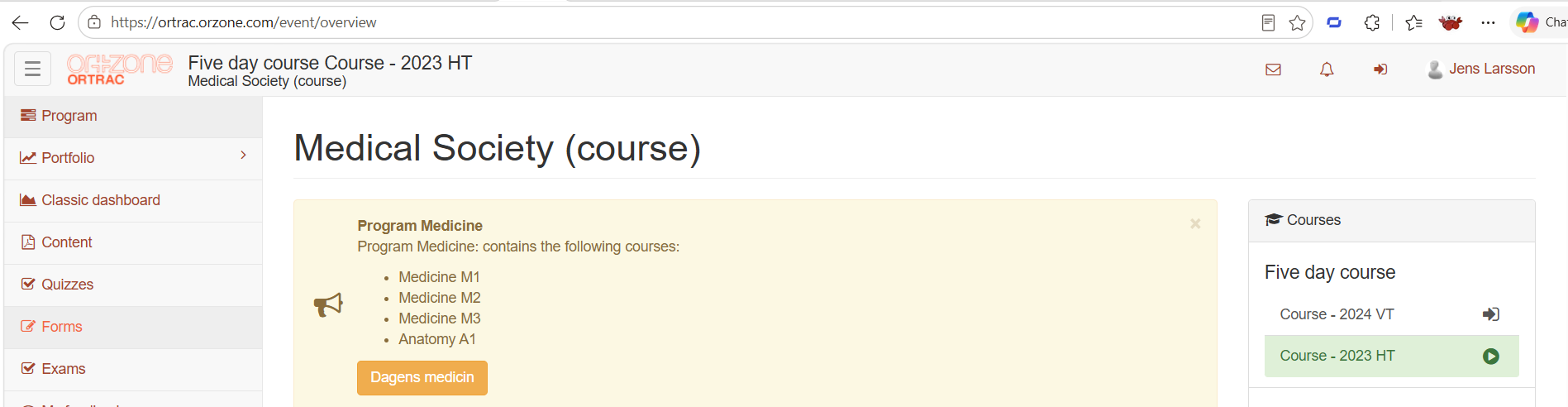
Administrator - Course announcements
To create a course announcement:
- Go the Courses menu
- Select a <course>/<course occasion>
- Go to the Announcement menu
- Click the button Create new Announcement
- For settings see the Program announcement section
Student - use of overview page
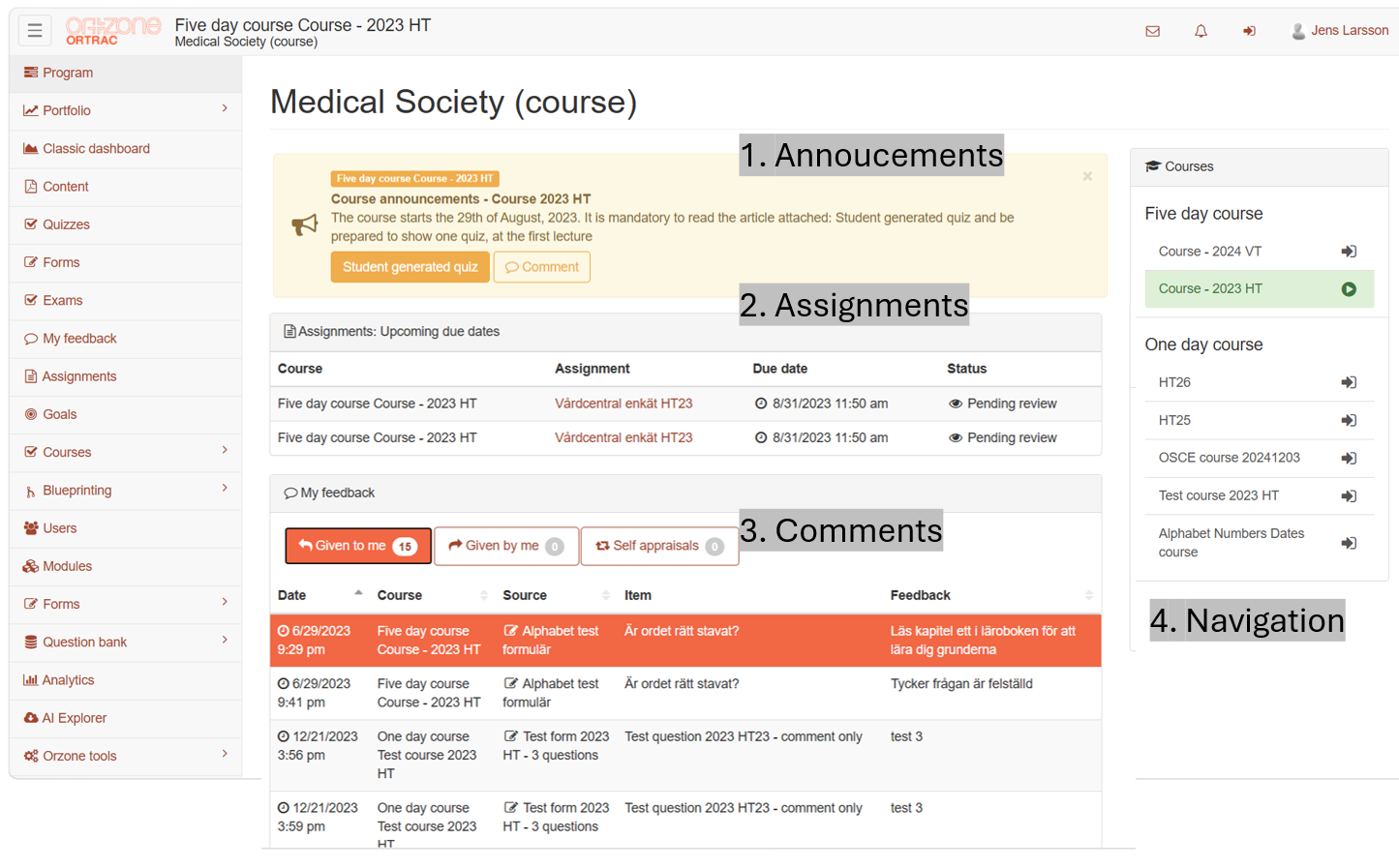
After administration has created and published a Student overview page, this adds a new menu startpage, to the students account, the menu is called Program.
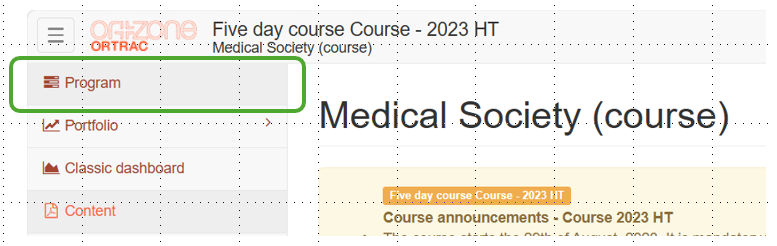
This page offer better interaction using:
- the announcement pages (program/courses).
- Easy to see items with duration under the Assignment section.
- All type of comments collected at one place, Comments section
- Better navigation between course occasions for the student
Students - comments on Program/Course announcements
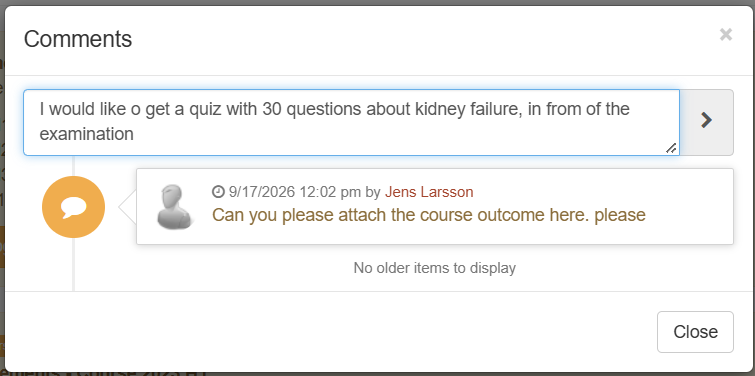
If an announcement has a Comment button, i is possible to use it to interact with peers and teachers. Older comments is shown in a historical order at the bottom of the window.
- Course announcements toggle button, set to Enabled
Orzone - properties
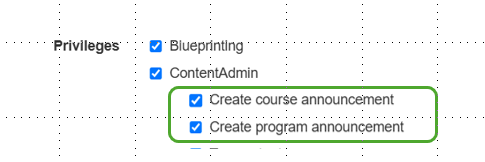
To be able to create Program/Course announcements, you need to have the following properties. Contact Orzone support for these settings.