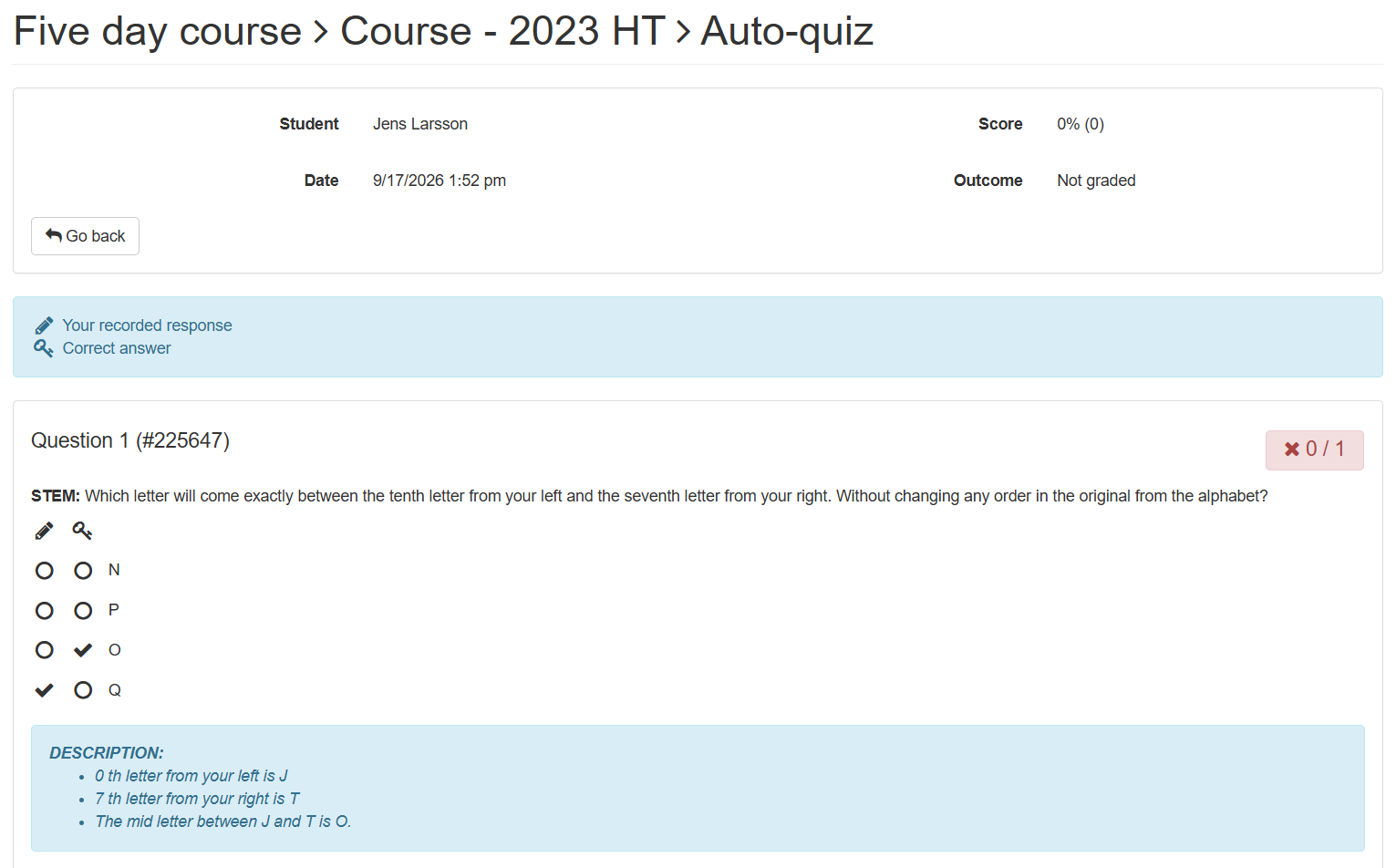
This article describes how a student can create a quiz, for personal training purposes.
TABLE OF CONTENTS
- General information
- Admin find the menu
- Configure auto-quiz
- Submissions/quizzes taken
- Auto-generated quiz as student
General information
Quiz is a term for a simpler form of question testing. An administrator can arrange for a student, to create their own quizzes to practise their knowledge, of their own, by setting up filters for specific training areas.
Admin find the menu
- Go to Courses/<select course>/<course occasion>, left menu
- Go to the menu Quizzes, in the course occasion
- Click the button Configure auto-quiz
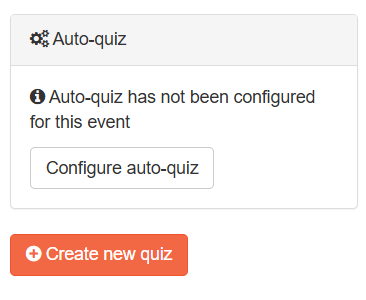
Configure auto-quiz
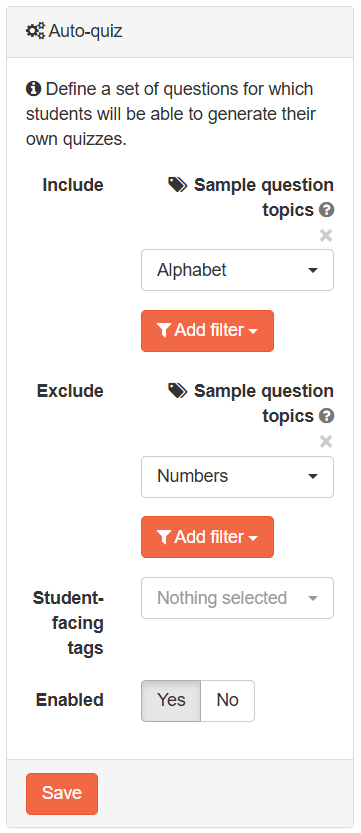
- Click the drop-down menu Include
- Select which <type of tags> you like the student to practise
- Click the drop-down menu Exclude
- Select which <type of tags> you like the student should avoid
- Click the drop-down menu Student facing tags
- Select which <type of tags> you like the student can use as a filter within the preferred tags, selected by the administrator.
- Click the toggle-button Enabled to Yes, meaning the students within the correct <course/course occasion> can you the function.
- When all the settings are made, click on the button Save
Auto-generated quiz as student
When you have published the quiz, the following things happen on the student's page. He logs in as usual in Ortrac and on the home page Dashboard / Portfolio you will find that in the Content section the number of quizzes has now increased.
- Click on the ring with Quiz to go to the quiz OR go to the Quizzes menu in the left menu
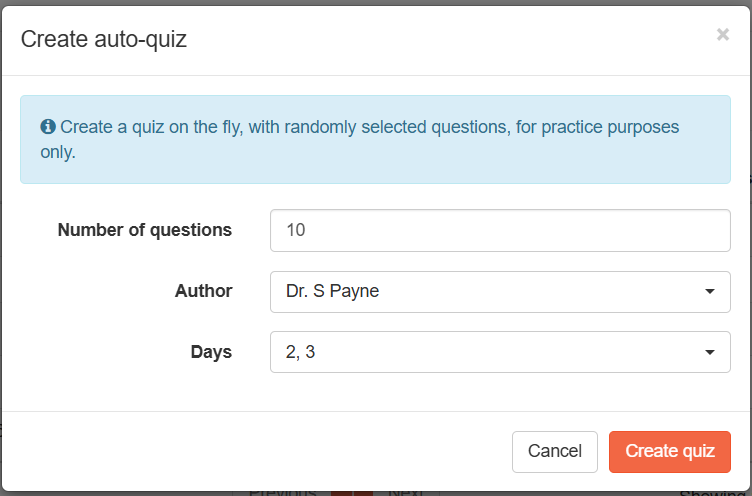
- Click on button Create auto-quiz
- Write the <number of questions> in the Number of questions field
- If the administrator has enabled the student to use filters, via the Student facing tags selector, you are able to specify which area/areas to practise, in the quiz
- Click on button Create quiz
The quiz starts, right away.
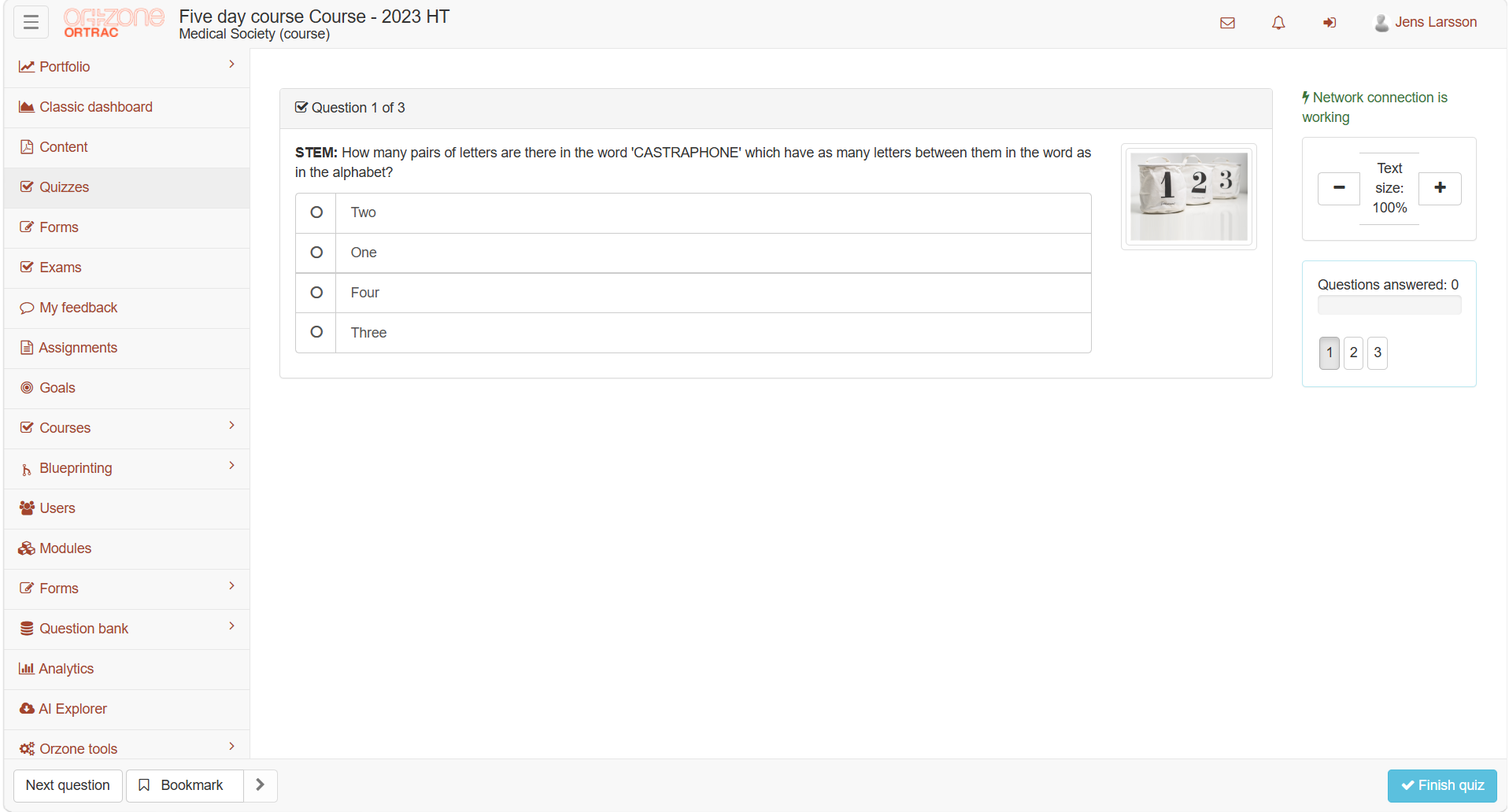
After finishing the Auto-generated quiz, a result page appears, with right/wrong answers. The
results will not be saved, this is just for training purposes and cant be tracked by your administrators.