This article describes how to work with course announcements, info about the course, with links to material, students can comment on the course
TABLE OF CONTENTS
- General information
- Administrator - create announcements
- Student - view announcements
- Students - comments on announcements
- Orzone - properties
General information
This function is a way for the administration to interact with the students, by posting announcements containing, info, links, a channel for students to comment on the course. You can have a number of announcements and also publish them at a specific date and time.
Administrator - create announcements
To create a course announcement:
- Go the Courses menu
- Select a <course>/<course occasion>
- Go to the Announcement menu
- Click the button Create new Announcement
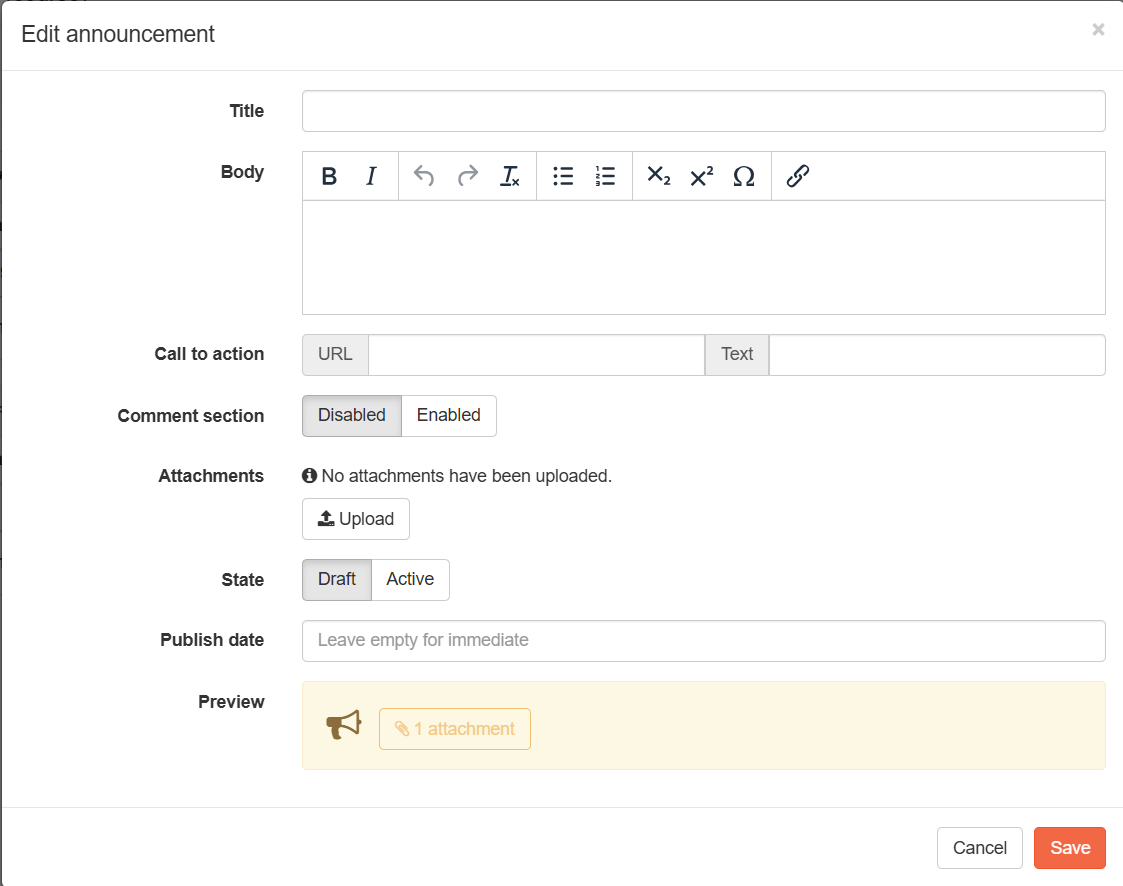
- Give it a <name> in the Title field
- Write a <description> in the Body field
- Add a <link> in the Call o action in the URL section, and <name it> in the Text section
- Change state Disabled/Enabled under the Comment section, control comments from students
- Add <one or more files> under the Attachment section, by clicking the Upload button
- Change state for the announcement Draft/Active under the State section
- If you like to change the state to Active using <a date and time>, use the Publish date section
- Preview shows how the settings will appears for the students
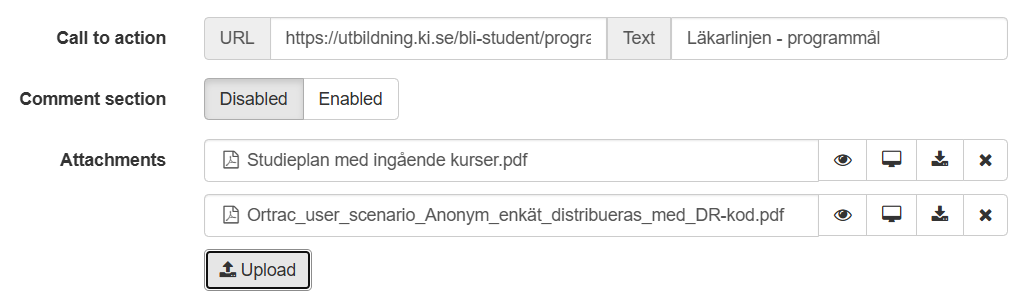
It is possible to add a link in an announcement and name it. It is also possible to attach, one or more files.

If you like to hide an existing announcement:
- Go to the Announcement menu
- Click the <announcement> you want to hide
- Change the State toggle button to Draft
Student - view announcements
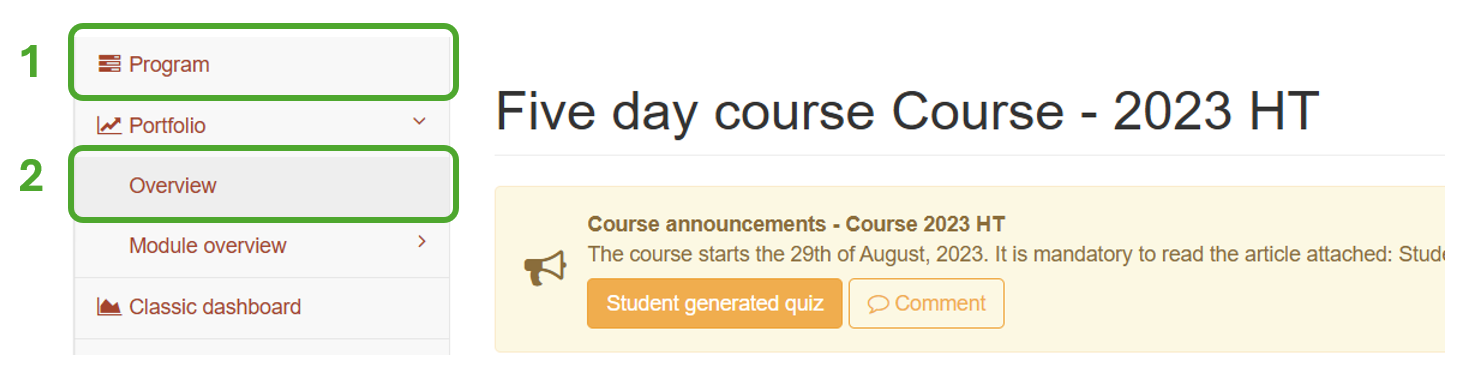
The student will see the announcement(s) under two menus, depending of the setup of your system:
- Under the menu Program - student over view page
- Under the menu Portfolio/Overview page
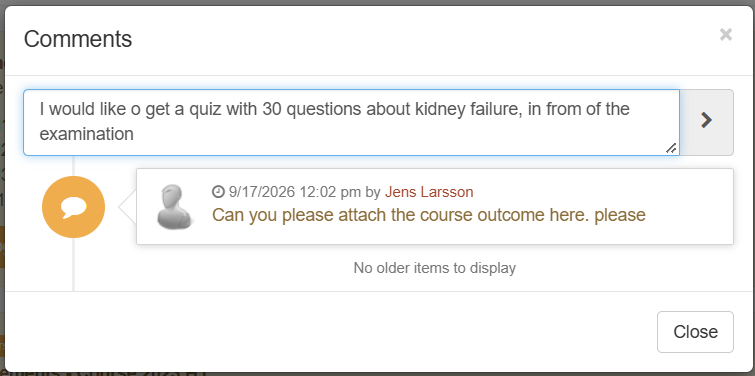
Students - comments on announcements
It is possible to interact with peers and teachers. Older comments is shown in a historical order at the bottom of the window.
- Click the button Comment
Orzone - properties
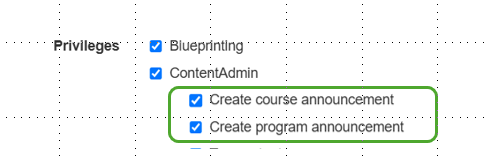
To be able to create Program/Course announcements, you need to have the following properties. Contact Orzone support for these settings.