
The article describes two new logic settings for forms, extended functionality for sections, and conditions for showing/hiding components in forms.
TABLE OF CONTENTS
Section/Separator
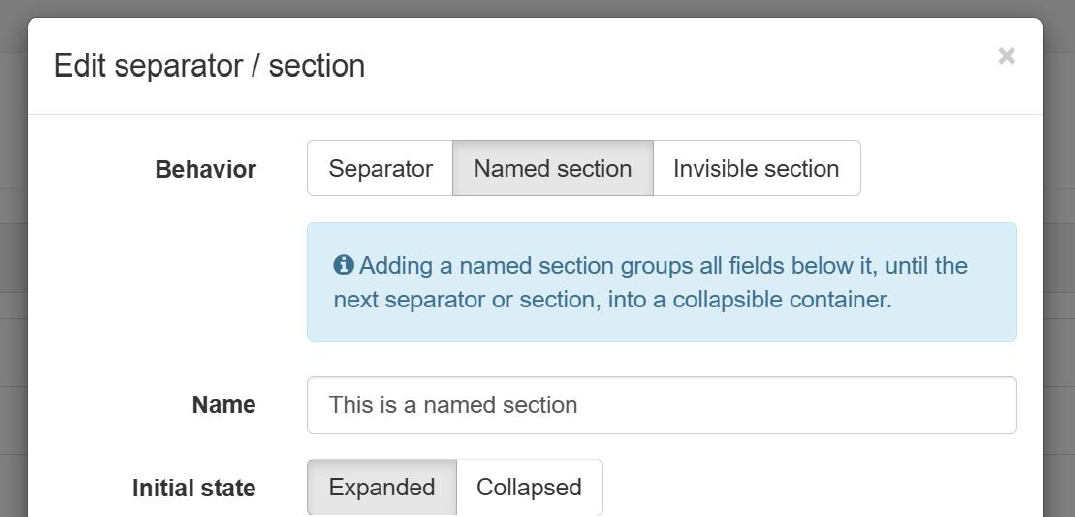
The form element previously known as Section has now been renamed Section / Separator. Its settings allow you to define its behaviour. It can take on one of the following roles:
- Separator: As before, a horizontal rule visually separating distinct parts of a form.
- Named section: This is rendered as a header, with plus/minus buttons to expand the or collapse the contents of the section. From settings, you can indicate whether the initial state of the section should be expanded or collapsed when the form opens.
- Invisible section: This section groups a set of form elements together, but without the header or the toggle button. The only use case for this type of section is to define conditional logic (see next heading) for an entire group of form fields, rather than having to add them to each field one by one.
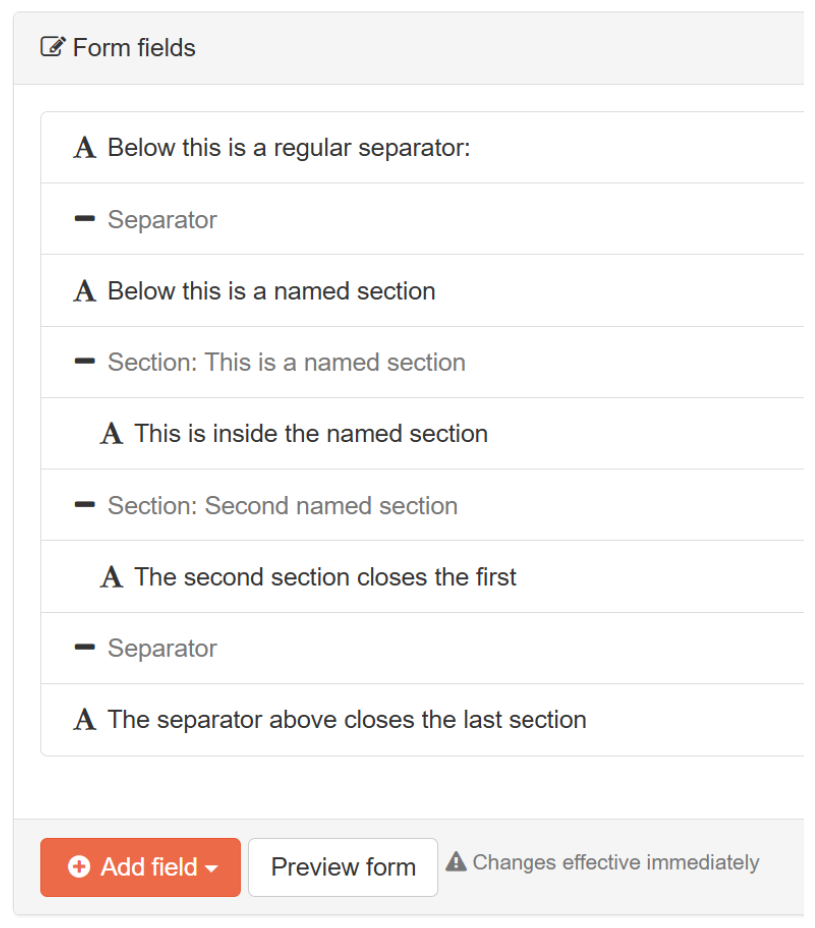
All elements between two separators / sections, are considered as children of the preceding section. Creating a single section as the first form element will wrap all subsequent elements in that section. If the last section is not expected to span everything until the end of the form, another separator has to be added, to close the section.
Conditional visibility
Editing a form field’s settings, a setting for when the field is Visible has been introduced. It accepts one of the following values:
- Always: Default behaviour. The field is always rendered.
- Conditionally: Selecting this option will expand a form for entering a conditional expression that toggles the visibility of the element being edited.

The expression formula has the following properties:
- Field to evaluate: The left-most dropdown picker enumerates all fields already present in the form, that are eligible for controlling conditional logic. Eligible fields are evaluation questions with discrete rating scales (e.g. not sliders, numeric input or comments).
- Desired values: The right-most dropdown picker allows you to select all the values for which the element being edited should be shown.
- Operator: The middle dropdown picker indicates whether the condition checks for equality or inequality. Controls if the edited field will be visible if the selected value is in the set of defined values (=) or is not in the set (≠).
Conditionally visible fields are always hidden until the condition is evaluated and met. Note that showing a field based on whether field A is not X, still hides that field until field A has been answered and given a value different than X. Leaving the target field blank does not implicitly meet the not-in-set criteria.